
Kinds of integrations
Integrations fall into three kinds:- Cloud providers — connect services that protect your infrastructure. Cloudflare connects your DNS and security services; OASM synchronizes your domain data on a regular schedule so your inventory stays current.
- Notifications — get alerts where your team already works. Slack and Telegram deliver messages to your channels and chats, and Webhook forwards events to any endpoint you control.
- Ticketing — turn findings into tracked work items. Jira is coming soon.
Applications Tab
The Applications tab shows all available integrations you can connect. Use the search bar to find a specific app, or filter by category using the dropdown. Click on an app card to open the connection form.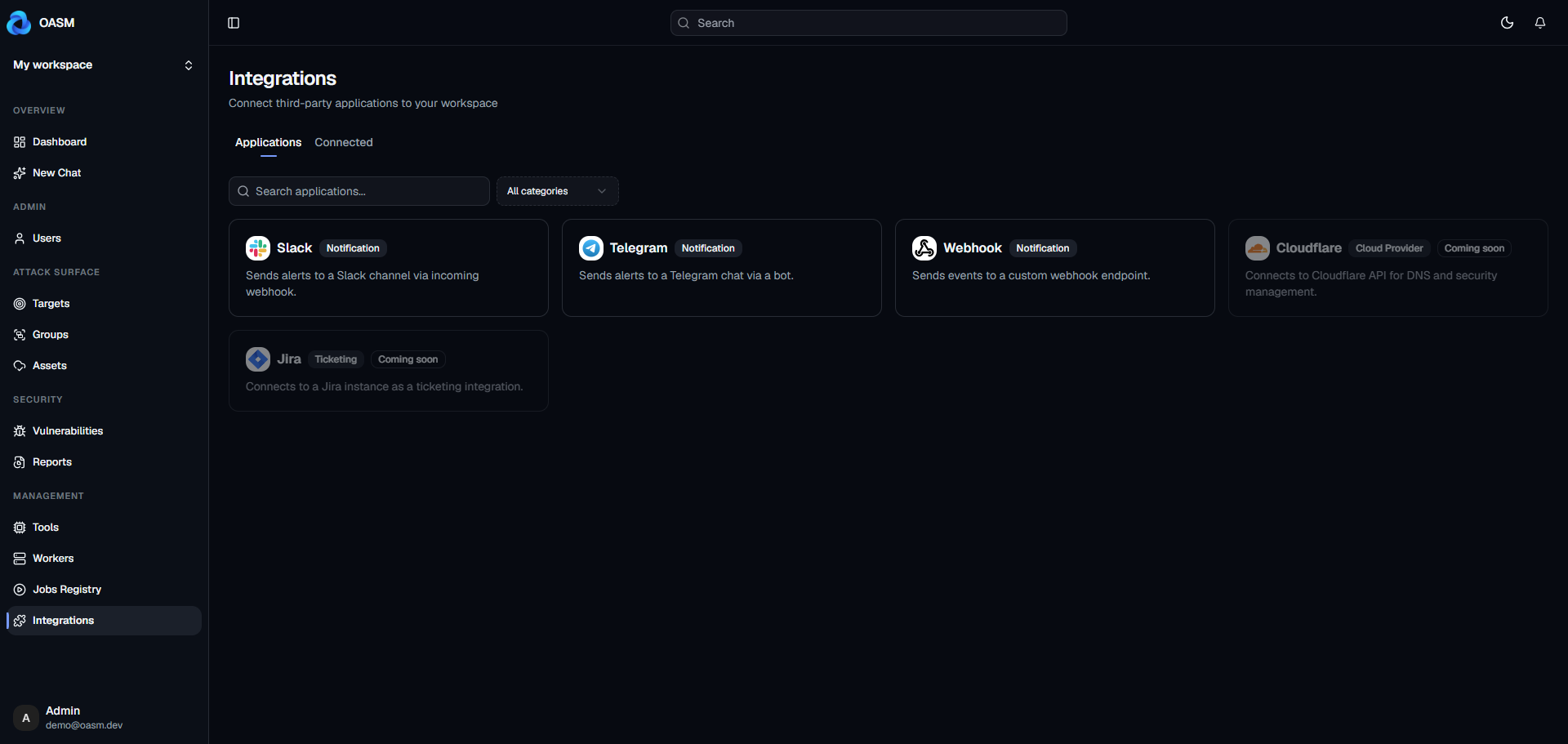
Connect an integration
The connection form opens as a sheet on the right side. Fields are dynamically rendered based on the app type:- Enter an Integration name
- Fill in the app-specific fields (see guides below for each type)
- Toggle the event and severity switches to control which notifications are sent
- Click Connect
The Event section controls which types of events trigger notifications. The Severity section filters by severity level. Both default to sending all events and critical/high severities.
Connected Tab
The Connected tab lists all integrations in your workspace, sorted by creation date. Each card shows the integration name, category, and when it was connected.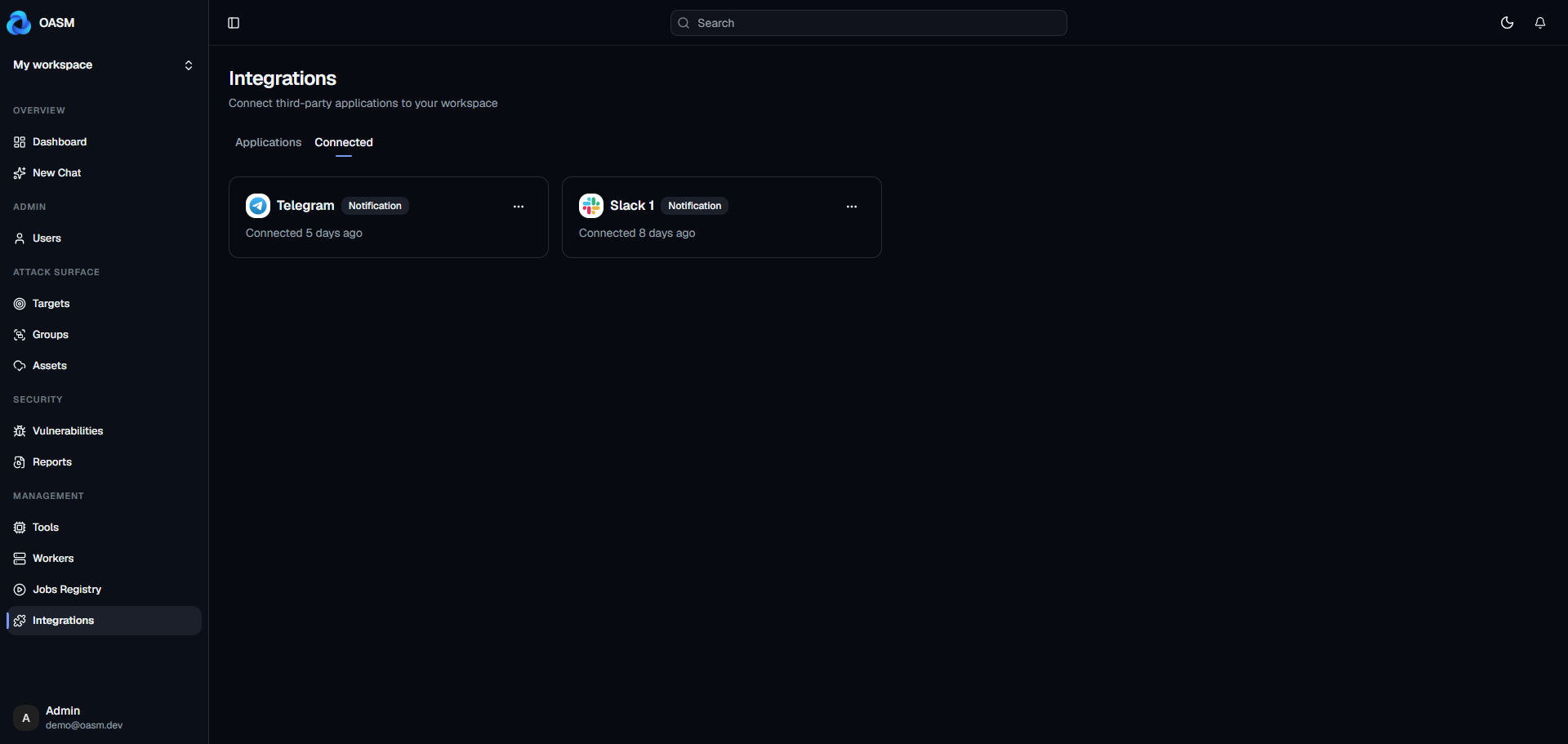
View and manage
Click a connected integration card to open its detail sheet:- Edit — modify the name or configuration fields
- Test Integration — send a test notification to verify the connection
- Telegram Pairing (Telegram only) — manage paired Telegram devices
- Disconnect — open the ”…” menu and select Disconnect, then confirm
Webhook
Sends events to a custom webhook endpoint.Connect
- Go to the Applications tab
- Click Webhook
- Enter an Integration name
- Enter the URL (the endpoint that will receive the webhook payload)
- Configure event and severity toggles
- Click Connect
Test
Open the integration detail sheet and click Test Integration.Slack
Sends alerts to a Slack channel via incoming webhook.Prerequisites
- Go to api.slack.com/apps
- Create a new app or use an existing one
- Enable Incoming Webhooks
- Click Add New Webhook to Workspace and select the target channel
- Copy the webhook URL
Connect
- Go to the Applications tab
- Click Slack
- Enter an Integration name
- Paste the Webhook URL from Slack
- Optionally enter a Bot Username (display name for the bot)
- Configure event and severity toggles
- Click Connect
Test
Open the integration detail sheet and click Test Integration. Check the Slack channel for the test message.Telegram
Sends alerts to Telegram chats via a bot. Each user must pair their Telegram account after the integration is created.Prerequisites
- Open Telegram and search for BotFather
- Send /newbot and follow the prompts
- Copy the bot token from BotFather
Connect
- Go to the Applications tab
- Click Telegram
- Enter an Integration name
- Paste the Bot Token from BotFather
- Configure event and severity toggles
- Click Connect
Pair a Telegram device
After connecting, open the integration detail sheet. In the Telegram Pairing section:- Click Pair to open the pairing dialog
- Click Generate Pairing Token
- Scan the QR code with your phone, or click Open Telegram to open the bot with the token
- The connection status changes to Connected once paired
The pairing token expires after 10 minutes. Click Generate New Token to create a fresh one. Multiple users can pair their own Telegram accounts to the same integration.
Disconnect a device
In the Telegram Pairing section, click the Unplug button next to the device you want to remove, then confirm.Test
Open the integration detail sheet and click Test Integration. Check your Telegram chat for the test message.Managing Integrations
Edit
Open the integration detail sheet and click Edit. Modify the fields and click Save.Disconnect
Open the integration detail sheet, click the … menu, and select Disconnect. Confirm the dialog to remove the integration.Disconnecting an integration is permanent. You’ll need to reconnect it from the Applications tab to use it again.